


How to Watch HDO Box On Roku: Screen Mirroring & Setup Guide (2026)
Learn the architectural reality of Roku OS, why native Android APK sideloading is technically impossible, and how to stream HDO Box movies and TV shows to any Roku TV or Streaming Stick using Android Smart View and Apple AirPlay 2 (see our How to Cast HDO Box to TV guide).
No. You cannot install or sideload the HDO Box APK directly onto Roku OS because Roku devices run on custom BrightScript code and lack an Android execution kernel. To stream HDO Box on a Roku TV, install the app on your Android smartphone, iPhone, iPad, or Windows PC from hdoboxapks.com and mirror your screen wirelessly using Android Smart View or Apple AirPlay 2.
Can You Sideload HDO Box On Roku? (The Technical Truth)
If you have searched online for instructions on how to install HDO Box on a Roku device, you have likely come across deceptive guides claiming you can install the Android APK directly using USB cables or Roku Developer Mode. These claims are fundamentally false.
| Feature / Component | Amazon Fire TV & Android TV | Roku OS (Roku TV / Sticks (compare with Smart TV setups)) |
|---|---|---|
| Operating System | Android Open Source Project (AOSP) | Proprietary Closed Roku OS (Linux-based) |
| Application Format | Compiled Android Packages (.apk) |
BrightScript Packages (.zip) |
| UI Framework | Android Leanback / Compose / Views | Roku SceneGraph XML Architecture |
| Sideloading Support | Direct Downloader APK Installation | No APK runtime engine exists |
| How to Watch HDO Box | Native Sideload Install | Wireless Screen Mirroring (Smart View / AirPlay) |
1. BrightScript vs. Android APK Architecture
Roku devices do not run on Android. They operate on a custom operating system written in BrightScript, an object-oriented scripting language developed by Roku, Inc. Roku OS has no Java Virtual Machine (JVM) or Android Runtime (ART) environment. Because of this architectural separation, Roku hardware physically cannot process, unpack, or run Android APK binaries.
2. Debunking the Developer Mode USB Sideload Myth
Certain websites instruct users to enable Developer Mode on their Roku remote and connect their TV to a PC using a USB cable. This tutorial is completely fabricated. Roku Developer Mode exists solely for developers to test BrightScript applications. Attempting to upload an APK file into the Roku Application Installer returns an immediate parsing failure.
3. Why Downloader App Does Not Exist on Roku
The popular Downloader app by AFTVnews was created exclusively for Android TV and Fire OS. It is not available in the Roku Channel Store because Roku OS cannot run APK installers. Any channel in the Roku store using the HDO Box name is an unauthorized service.
How to Screen Mirror HDO Box on Roku from an Android Device
Wireless screen mirroring via Miracast is the most effective and reliable method to project HDO Box streams to your Roku TV. Follow these step-by-step instructions to set up your connection.
1Install HDO Box & MediaOn on Your Android Phone
Visit / on your mobile browser, download both the HDO Box APK and the MediaOn Player APK, and install them on your phone.
2Configure Roku Screen Mirroring Settings
On your Roku remote, press the Home button, go to Settings > System > Screen mirroring, and set Screen mirroring mode to Always allow.
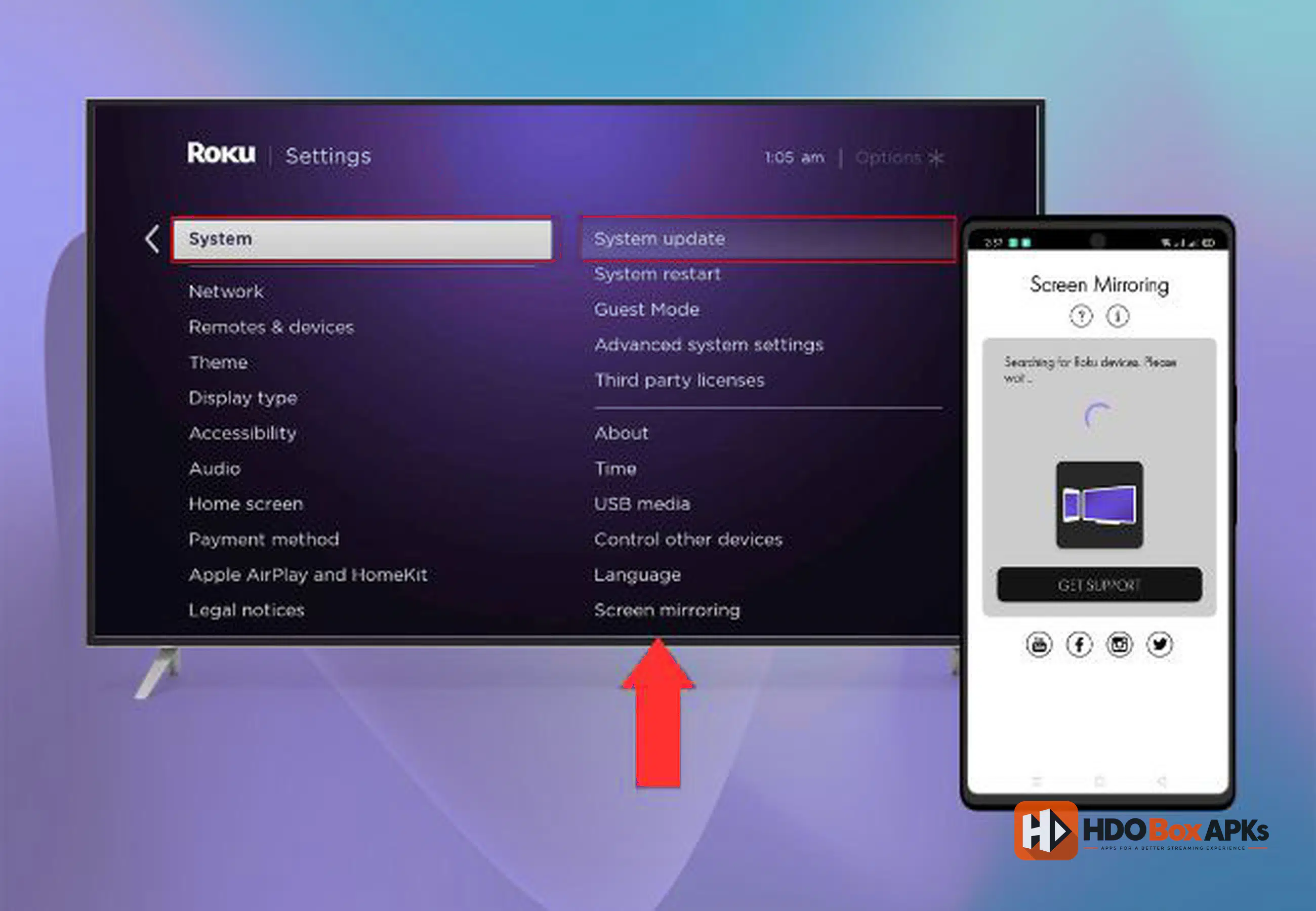
3Connect to the Same 5 GHz Wi-Fi Network
Verify that your Android smartphone and your Roku device are connected to the exact same Wi-Fi SSID. Connect to the 5 GHz band to prevent buffering and latency.
4Activate Android Screen Casting (Smart View / Cast)
Swipe down from the top of your Android screen to open Quick Settings. Tap Smart View (Samsung), Cast (Pixel/Motorola), or Wireless Display (Xiaomi), and select your Roku TV.
5Start Streaming in Landscape Mode
Once your phone screen appears on your television, launch HDO Box, pick a title, press play, and rotate your phone horizontally to enjoy full-screen 16:9 widescreen streaming.
How to Stream via Apple AirPlay 2 on Roku (iPhone, iPad, Mac)
If you use an Apple device, you can stream HDO Box directly to your Roku using Apple's integrated AirPlay 2 engine. AirPlay 2 provides hardware-accelerated video mirroring with synchronized digital stereo and Dolby surround sound.
1Verify Roku AirPlay 2 Compatibility
AirPlay 2 is supported on all modern Roku devices running Roku OS 9.4 or higher, including Roku Streaming Stick 4K, Roku Express 4K, Roku Ultra, and all TCL/Hisense/Onn Roku TVs.
2Enable AirPlay in Roku Settings
On your Roku TV, navigate to Settings > Apple AirPlay and HomeKit, and ensure AirPlay is toggled to On.
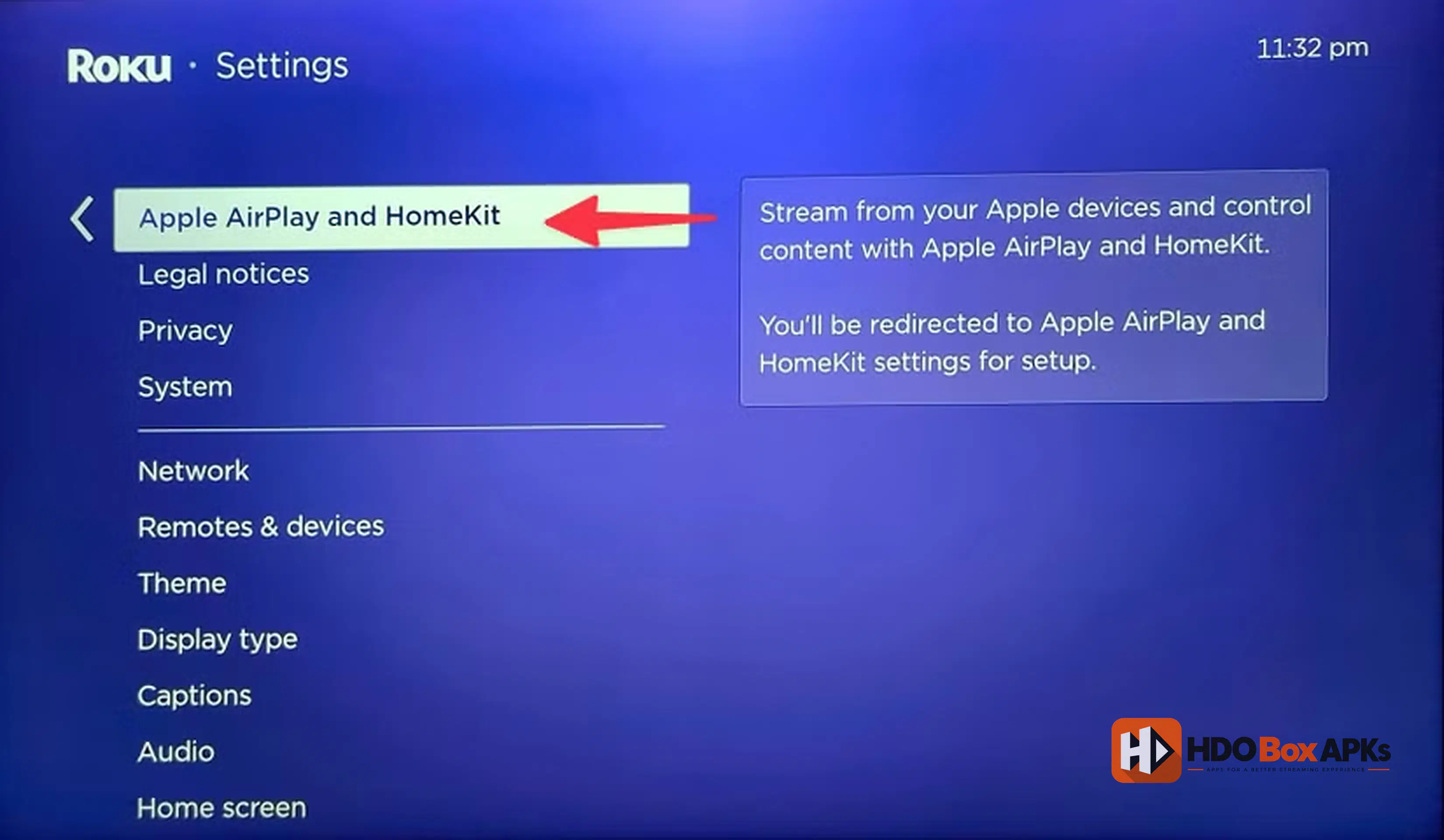
3Connect via iOS Control Center
On your iPhone or iPad, swipe down from the top-right corner to open the Control Center, tap the Screen Mirroring icon (two overlapping rectangles), and tap your Roku TV.
4Launch HDO Box on iOS
Open HDO Box on your Apple device and initiate playback. The video stream and audio will route seamlessly to your television screen.
HDO Box Technical Specifications & Version Matrix
| Parameter | Official Verified Spec | Operational Context |
|---|---|---|
| Stable Release Build | v4.4.7 (Mobile Build v2.0.23) | Latest 2026 Core Release |
| Package Size | 38.4 MB (Universal APK) | Installed on Casting Smartphone / PC |
| Companion Player | MediaOn Video Player | Required for video stream rendering |
| Mirroring Protocols | Miracast (Android) & AirPlay 2 (Apple) | Zero-cable wireless transmission |
| Official Download Source | / | Official verified distribution |
Troubleshooting Common Roku Streaming Errors & Fixes (2026)
If you experience display glitches, buffering pauses, or audio lag while mirroring HDO Box to your Roku, use this diagnostic guide to resolve the issue.
| Error Symptom | Root Cause | Verified Solution |
|---|---|---|
| Black Screen with Audio Only | Phone DRM hardware overlay flag | Switch MediaOn Player decoder to Software (SW) |
| Roku Not Found in Cast Menu | Wi-Fi frequency band isolation | Connect both devices to the same 5 GHz Wi-Fi SSID |
| Gray Thumbnail UI Boxes | Image scraper API downtime | Update to official v4.4.7 build & clear app cache |
| "Player Required" Error Prompt | Missing MediaOn companion app | Install MediaOn Player from hdoboxapks.com/player |
| Video Stuttering & Audio Lag | 2.4 GHz channel congestion | Move closer to router & use 5 GHz Wi-Fi band |
Security, VPN Requirements & Legal Status
Because Roku OS does not support native VPN client apps, you cannot install a VPN directly onto your Roku streaming stick. However, when you screen mirror from an Android smartphone, iPhone, or laptop, all network traffic originates from your source device.
Installing an encrypted VPN (such as ExpressVPN, NordVPN, or Surfshark) onto your smartphone masks your home IP address, prevents your Internet Service Provider (ISP) from throttling your streaming bandwidth, and ensures full privacy while projecting streams to your Roku TV.
Functional Alternatives to HDO Box for Roku & Streaming Devices
| Streaming App | Direct Roku Support | Best Native Platform | Scraper & Add-on Method |
|---|---|---|---|
| Stremio | Screen Mirror / AirPlay | Android TV, Fire TV, PC | Torrentio + Real-Debrid / Torbox |
| BeeTV | Screen Mirroring | Fire OS, Android TV | Direct Web Scrapers + Bear Player |
| FlixVision | Screen Mirroring | Android TV, Google TV | Direct Cloud Links + Debrid |
| OnStream | Screen Mirroring | Android Mobile | Integrated Embedded Player |
Frequently Asked Questions (FAQs)
Can I install HDO Box using the Downloader app?
Why is screen mirroring failing between my smartphone and Roku TV?
Is HDO Box listed on the official Roku Channel Store?
Does HDO Box require separate paid subscriptions for each channel?
Does screen mirroring drain my smartphone battery?
Conclusion: Streaming with HDO Box On Roku
While native APK sideloading is impossible due to Roku OS restrictions, streaming HDO Box On Roku is effortless using Smart View on Android or AirPlay 2 on iOS. By mirroring high-bitrate streams from your mobile device, you can enjoy seamless 1080p movies and series on your big screen without buying extra hardware.
By utilizing Android Smart View (Miracast) or Apple AirPlay 2, you get the best of both worlds: the massive, on-demand entertainment library of HDO Box paired with the high-resolution big-screen display of your living room Roku TV. Download the official v4.4.7 build and companion MediaOn player from /, connect your devices to a high-speed 5 GHz Wi-Fi network, and enjoy unlimited high-definition entertainment on your Roku in 2026.