

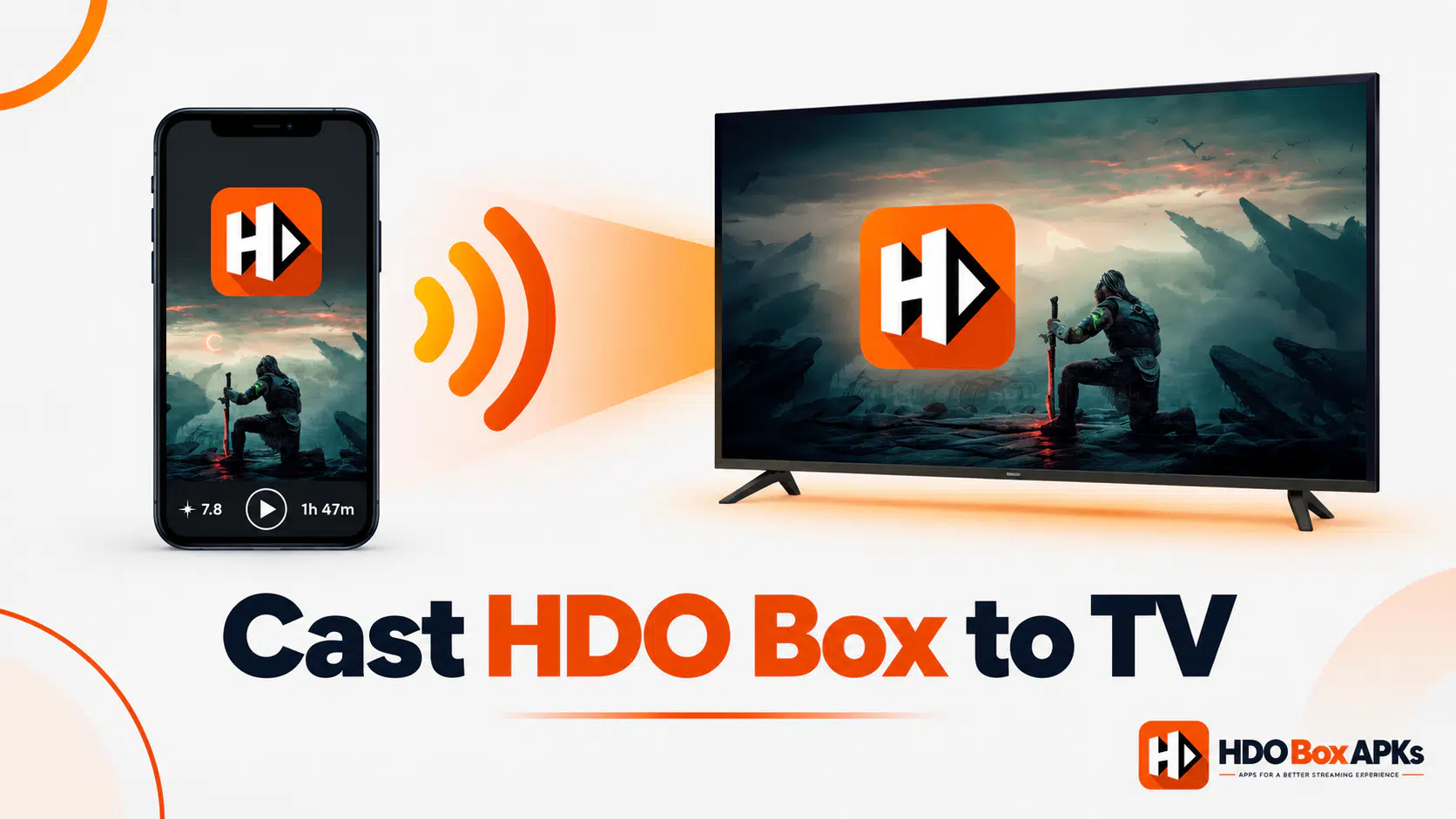
Learning how to cast HDO Box to TV is essential for viewers who stream on Android phones or iPhones and want to watch on a big screen without dedicated streaming hardware. Whether you have a TV with Chromecast built in, an Apple TV with AirPlay, or a smart TV that supports screen mirroring, you can get HDO Box playing on almost any television in minutes.
While HDO Box runs natively on Firestick and Android TV boxes, many users prefer streaming from handheld devices. Screen casting gives you full flexibility across Samsung, LG, Sony, and Roku TVs without purchasing additional equipment.
This complete guide walks you through every verified method for how to cast HDO Box to TV, explaining the setup steps, wireless requirements, audio-video syncing tips, and performance tweaks for each device.
1. How to Cast HDO Box to TV: Core Principles
HDO Box is an Android APK engineered for mobile and TV platforms. However, many viewers find themselves asking how to cast HDO Box to TV because:
- They have the app installed on a mobile device and want a shared big-screen viewing experience.
- Their smart TV runs a proprietary operating system (such as Samsung Tizen, LG webOS, or Roku OS) that cannot install third-party Android APKs directly (see our Smart TV guide).
- They are traveling or staying in a hotel where casting to a TV is more convenient than sideloading apps onto guest hardware.
Understanding the mechanics of casting is important. Because HDO Box does not contain Google's proprietary Cast SDK, direct in-app casting differs slightly from apps like YouTube. Instead, wireless screen casting or mirroring is used to transmit the video feed.
2. Method 1: Cast from Android Using Chromecast
Using Chromecast (or a television with Chromecast built in) is one of the most reliable options when looking for how to cast HDO Box to TV from an Android device. Because HDO Box uses external video decoders like Drama Player, screen mirroring delivers the entire video feed seamlessly.
- Android phone or tablet running Android 9 or newer
- Chromecast device (any generation) or Google TV / Chromecast built-in TV
- Both devices connected to the same Wi-Fi network (preferably 5 GHz)
Step-by-step instructions:
- Connect your Android phone and your Chromecast device to the same Wi-Fi network.
- Swipe down from the top of your screen to open the Quick Settings panel.
- Tap the "Cast" or "Screen Cast" tile.
- Select your Chromecast or Google TV from the detected devices list. Your phone screen will now appear on the TV.
- Launch HDO Box on your phone, choose a movie or episode, and start playback.
- Rotate your phone to landscape mode to fill the entire TV screen with the video stream.
3. Method 2: Cast from iPhone/iPad Using AirPlay
Apple users can also stream wirelessly using AirPlay 2: Apple's high-fidelity wireless streaming protocol. AirPlay 2 is supported across Apple TV devices as well as modern smart TVs from Samsung, LG, Sony, and Vizio. For native iOS sideloading, check our HDO Box iOS installation guide.
- iPhone running iOS 12+ or iPad running iPadOS
- Apple TV (3rd generation or newer) or AirPlay 2-compatible smart TV
- Both devices connected to the same Wi-Fi network
Using AirPlay via the web player: If you access HDO Box via Safari on your iPhone:
- Open Safari and launch your stream.
- Tap the AirPlay icon within the player controls.
- Select your Apple TV or compatible smart TV.
- Video and audio will instantly route to your television.
Using Screen Mirroring from Control Center: If you have HDO Box sideloaded on iOS:
- Swipe down from the top-right corner to open the iOS Control Center.
- Tap "Screen Mirroring" (the two overlapping rectangles).
- Choose your Apple TV or AirPlay-compatible television.
- Open HDO Box and launch your chosen title.
4. Method 3: Android Screen Mirroring (Miracast / Smart View)
Another effective technique for wireless streaming without a Chromecast is using Miracast or Smart View. Miracast creates a direct Wi-Fi connection between your Android phone and your smart TV.
- Samsung Devices: Branded as Smart View or Wireless DeX.
- Xiaomi / Redmi: Listed as Cast or Wireless Display.
- OnePlus / OPPO / Realme: Listed as Screencast or Screen Mirroring.
- Google Pixel: Listed under Cast in Connected Devices.
Steps to mirror:
- Ensure your TV's Miracast or Screen Share mode is turned on.
- On your phone, tap Smart View or Screencast in Quick Settings.
- Select your smart TV model from the list.
- Accept the connection request on your television screen if prompted.
- Open HDO Box and start playing your video in full-screen landscape mode.
5. Method 4: Cast HDO Box to a Samsung Smart TV
Samsung TVs run Tizen OS, which means you cannot install HDO Box directly. Streaming on a Samsung screen gives you two straightforward solutions:
Option A: Samsung Smart View (Android):
- Ensure your Samsung smartphone and Samsung TV are on the same Wi-Fi network.
- Open Quick Settings on your phone and tap Smart View.
- Select your Samsung TV from the list and grant permissions on your TV.
- Open HDO Box to begin streaming on the big screen.
Option B: Apple AirPlay (iOS):
- Ensure AirPlay is enabled on your Samsung TV (Settings > General > Apple AirPlay Settings).
- Open Control Center on your iPhone and tap Screen Mirroring.
- Select your Samsung TV and enter the 4-digit PIN displayed on your TV screen.
For a full breakdown, see our Samsung and Smart TV tutorial.
6. Method 5: Cast HDO Box to an LG Smart TV
LG smart TVs operate on webOS. If you are casting HDO Box onto an LG display, use either LG Screen Share or AirPlay 2:
For Android devices:
- Open Quick Settings and select Cast or Screen Mirroring.
- Choose your LG TV from the list of available devices.
- Confirm the pairing prompt on your LG TV remote.
- Launch HDO Box and enjoy high-definition playback.
For iOS devices:
- Open iOS Control Center and tap Screen Mirroring.
- Select your LG webOS TV.
- Enter the on-screen code to establish the connection.
7. Method 6: Cast HDO Box to Roku
Roku devices run BrightScript, making native APK installation impossible. Fortunately, Roku provides built-in screen mirroring and AirPlay support. Read our detailed HDO Box on Roku setup guide.
Screen mirroring to Roku from Android:
- On your Roku, navigate to Settings > System > Screen Mirroring and select "Always Allow" or "Prompt".
- On your Android phone, enable Cast or Smart View.
- Select your Roku device from the scan results.
- Open HDO Box and stream your desired movie or series.
AirPlay to Roku from iPhone: Roku streaming sticks and TVs running Roku OS 9.4+ support AirPlay 2. Simply select your Roku device from the iOS Screen Mirroring menu.
8. Method 7: Use an HDMI Cable (Direct Connection)
If wireless casting suffers from interference, a physical wired connection is a bulletproof alternative with zero lag and lossless audio:
- USB-C Android Phones: Use a USB-C to HDMI adapter or multi-port hub. Most modern flagships output 4K 60fps video instantly.
- iPhones with USB-C (iPhone 15+): Connect directly with a USB-C to HDMI cable.
- iPhones with Lightning (iPhone 14 and earlier): Use Apple's Lightning Digital AV Adapter.
- Zero latency and immune to Wi-Fi drops.
- Delivers uncompressed full 1080p and 4K video resolution.
- Does not consume additional Wi-Fi bandwidth.
9. Troubleshooting HDO Box Casting Issues
If you encounter difficulties when trying to cast HDO Box, check these common troubleshooting fixes:
- Target TV not showing up: Ensure both devices are on the exact same Wi-Fi network and frequency (e.g., both on 5 GHz). Disable "AP Isolation" in your router settings.
- Black screen with audio playing: Switch hardware decoding settings in Drama Player (Settings > Decoder > HW / SW) or choose a different source link.
- Audio lag or out-of-sync video: Lower the resolution slightly or move your phone closer to the Wi-Fi router to reduce transmission packet loss. See our buffering guide for network optimizations.
- Frequent disconnections: Disable battery optimization for HDO Box and Drama Player on your Android device so the OS does not put the app to sleep in the background.
10. Best Option for Your Setup: Quick Reference
| Your Device & TV Combination | Recommended Casting Method | Connection Type |
|---|---|---|
| Android Phone + Chromecast | Screen Mirroring via Cast Tile | Wireless (Wi-Fi) |
| Android Phone + Samsung TV | Smart View / Miracast | Direct Wireless |
| Android Phone + LG TV | Screen Share / Miracast | Direct Wireless |
| Android Phone + Roku TV | Roku Screen Mirroring (Roku Guide) | Wireless (Wi-Fi) |
| iPhone + Apple TV | AirPlay Screen Mirroring | Apple AirPlay 2 |
| iPhone + Samsung / LG TV | AirPlay 2 Integration | Apple AirPlay 2 |
| Any Phone + Any Television | USB-C to HDMI Cable | Wired (Zero Lag) |
Frequently Asked Questions
Does HDO Box have a dedicated Cast button?
Can I use my phone for other apps while casting HDO Box?
Will casting HDO Box drain my phone's battery?
Why does casting buffer when playing 4K links?
Conclusion
Understanding how to cast HDO Box to TV allows you to enjoy all your favorite movies and TV series on the biggest display in your home without needing a separate TV streaming stick. Whether you rely on Chromecast screen casting, Samsung Smart View, Apple AirPlay, or a high-speed HDMI cable, setting up takes only a few taps.
By following the device-specific steps outlined above and ensuring a strong 5 GHz Wi-Fi connection, you can achieve smooth, high-definition streaming with HDO Box on any television. If you experience buffering, consult our HDO Box buffering guide or check our troubleshooting hub.