

Knowing how to update HDO Box correctly matters more than it might seem. Because HDO Box isn't on official app stores, it doesn't update automatically, and running an outdated version is the single most common cause of "no links available" errors, broken thumbnails, and missing features. Outdated APKs use deprecated scraper APIs that no longer work.
This guide explains every method to update the app safely, how to keep your Trakt watchlist and preferences intact during updates, and what to do when an update breaks something. If you are experiencing unexpected crashes, see our HDO Box not working troubleshooting guide.
1. Why Updating HDO Box Matters
HDO Box works by querying external video hosting servers through scraper API endpoints across Firestick, Android TV, and PC / Mac. These endpoints change regularly: hosting providers block or restrict access, require new authentication tokens, or restructure their CDN. When the app uses outdated endpoints, streams stop loading.
- "No Links Available" for most or all content, even during normal server operation.
- Poster artwork showing as grey boxes instead of images.
- The app crashes on launch.
- Streams load but immediately fail.
- The Drama Player version compatibility warning appears.
Staying current with HDO Box updates is essentially maintenance: it keeps the scraper APIs fresh and the app functional. Most updates are released in response to specific server changes, so delaying updates directly translates to worse streaming reliability.
2. Method 1: Update From Inside the App
The easiest way to understand how to update HDO Box is to use the built-in checker inside the app itself. The app includes a built-in update checker that notifies you when a new version is available.
Steps:
- Open HDO Box on your device.
- Navigate to Settings (gear icon, usually in the top-right corner or hamburger menu).
- Look for "Check for Update", "About", or "App Version" options.
- Tap "Check for Update." The app contacts the developer's update server.
- If an update is available, a prompt appears with the new version number and changelog.
- Tap "Download" or "Update Now."
- The app downloads the new APK and prompts you to install it. Tap Install when prompted.
- Your device will install the update over the existing version (no data loss).
When the system asks "Do you want to install an update to this application?", confirm that the package name matches. A legitimate HDO Box update will show the same package name as your installed version. A different package name is a red flag.
3. Method 2: How to Update HDO Box Using Downloader
If the in-app update checker isn't working and you need to know how to update HDO Box manually or you want to manually ensure you have the absolute latest version, Downloader is the standard method for Firestick and Android TV users.
- Downloader app installed (available free from the Amazon Appstore or Google Play Store).
- Unknown Sources or "Install Unknown Apps" enabled for Downloader in your device settings.
Steps:
- Open the Downloader app.
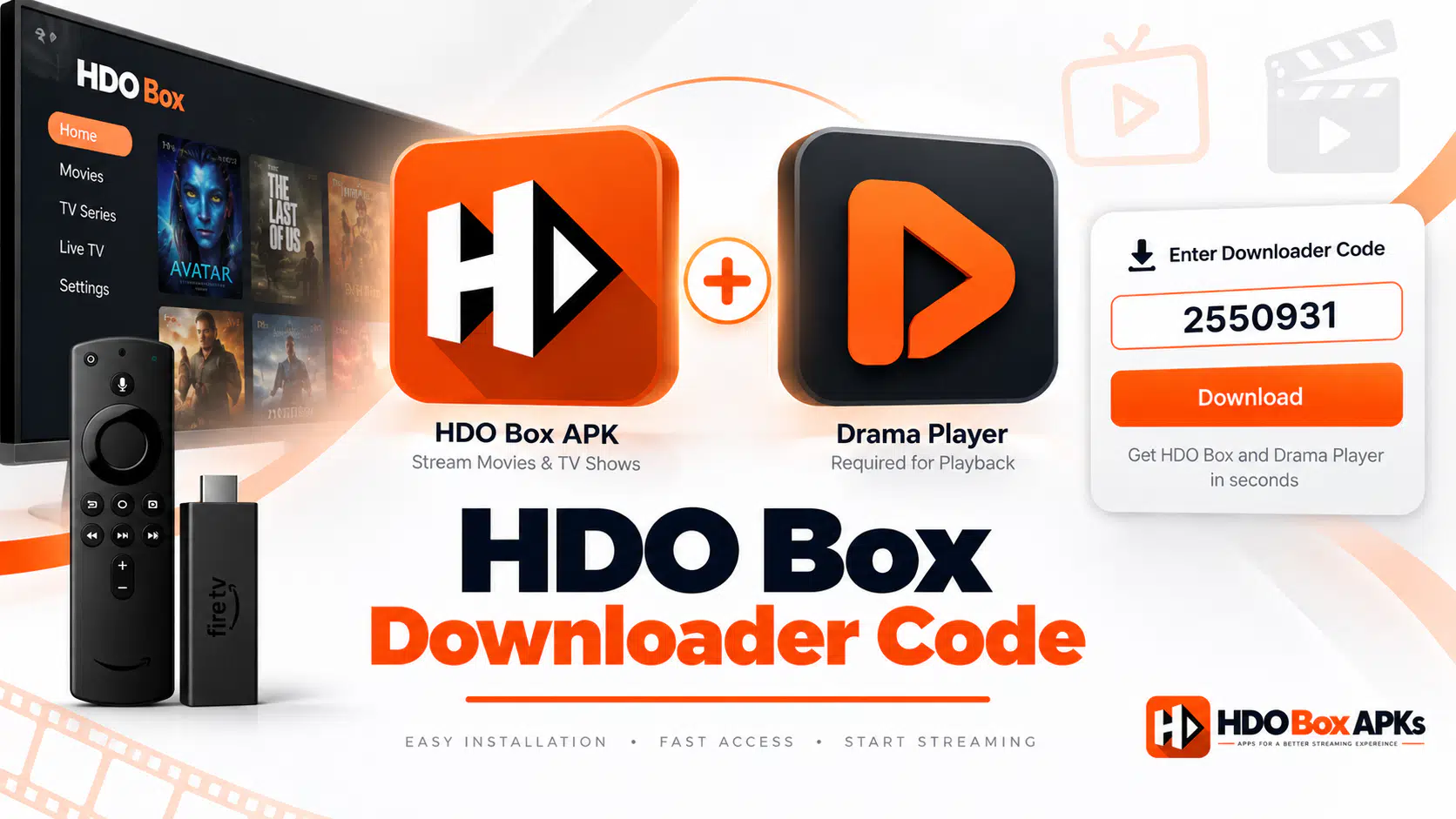
In the URL field, enter the direct APK download URL from our HDO Box APK download page or one of these verified Downloader codes:
- 730116: FirestickHacks verified HDO Box APK
- 6447263: alternative verified source
- Press Go or Enter. Downloader fetches the APK file.
- When the download completes, tap Install.
- On the confirmation screen, select "Replace" / "Update" to overwrite the existing installation.
- After installation completes, tap Delete to remove the downloaded APK file from storage.
- Reopen HDO Box: your settings and any locally stored preferences will be intact.
On some Fire OS versions, Amazon's security layer flags sideloaded apps. Tap "Install Anyway" or "Continue": this is expected behavior for sideloaded APKs.
Enter this verified code in the Downloader app on Firestick & Android TV
4. Method 3: Manual APK Update on Android Mobile
On Android phones and tablets, how to update HDO Box is straightforward because Android's file management is more flexible than Fire OS.
Steps:
- Download the latest HDO Box APK directly to your phone from our verified download page.
- Open your file manager app and locate the downloaded APK (usually in the Downloads folder).
- Tap the APK file. Android will prompt you to install it.
- If prompted to enable Unknown Sources, go to Settings > Apps > Your Browser App > Install Unknown Apps, and enable it.
- Tap Install on the confirmation screen. Android installs it as an update, preserving app data.
- After installation, open HDO Box and verify it's running the new version under Settings > About.
5. How to Save Your Watchlist Before Updating
Updating HDO Box over an existing installation preserves your data. However, if you ever need to do a clean uninstall-and-reinstall, your watchlist and viewing progress will be lost, unless you've synced it with Trakt.
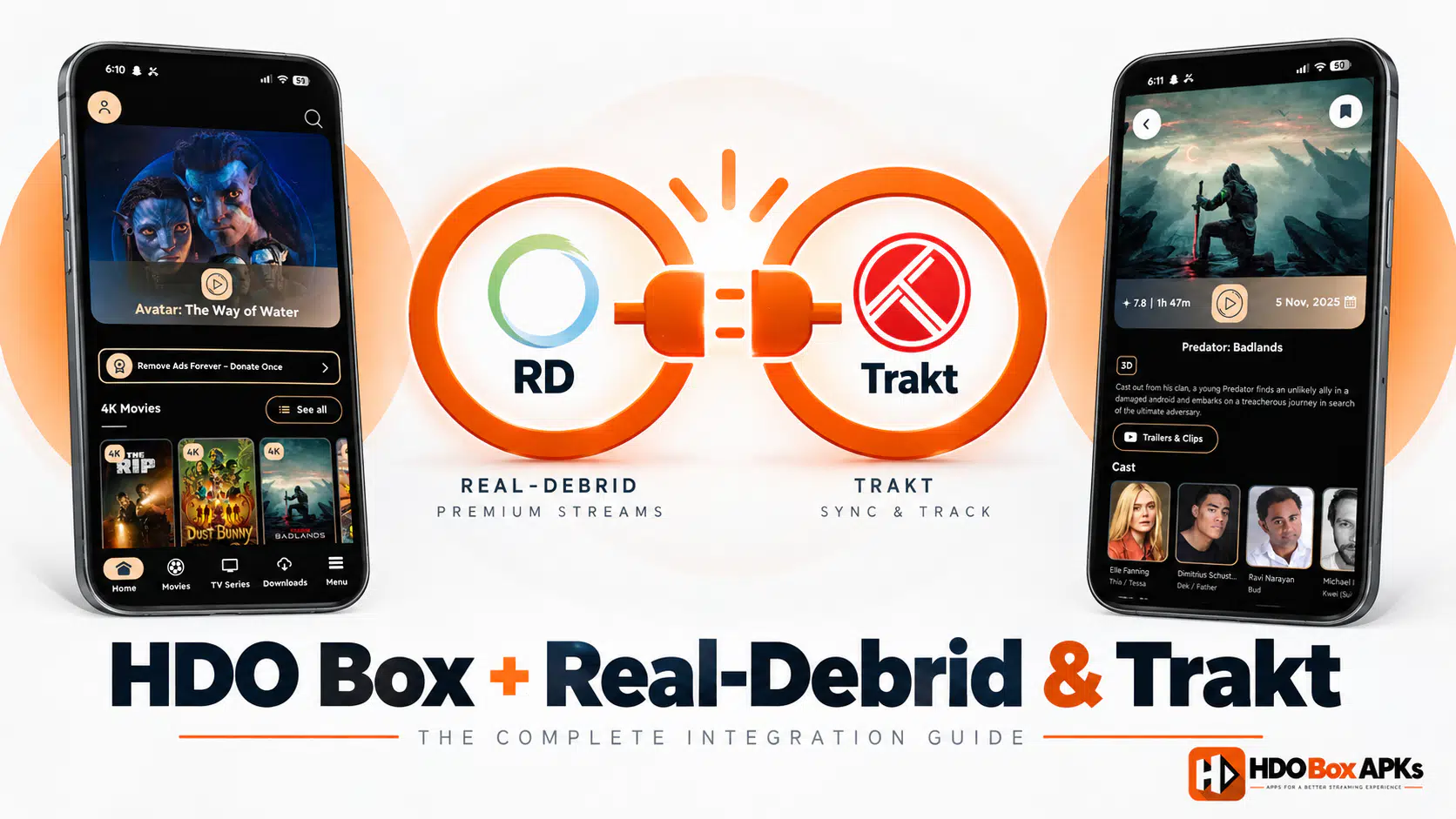
Trakt is the essential backup tool for HDO Box users. Trakt.tv is a free service that syncs your watchlist, viewing history, and ratings to the cloud. When you reinstall HDO Box on any device and link your Trakt account, all your data restores automatically. Read our full Real-Debrid and Trakt setup tutorial.
How to sync with Trakt before updating:
- Open HDO Box and go to Settings.
- Find the "Trakt" integration option.
- Select "Connect Trakt Account": this opens a browser prompt.
- Visit trakt.tv/activate and enter the displayed code.
- Authorize the connection. HDO Box will now sync your watchlist to the cloud.
Once Trakt is connected, you can safely uninstall and reinstall HDO Box on any device and fully restore your viewing history by connecting your Trakt account again.
6. How to Update Drama Player at the Same Time
When you update the app, it's best practice to also update Drama Player immediately afterward. New HDO Box versions sometimes include updated media player compatibility requirements. Running an outdated Drama Player alongside a new HDO Box version can cause the "Player Not Installed" error or silent playback failures.
Update Drama Player:
- Open Downloader.
- Enter code 250931 (TROYPOINT verified) or 730116 (or visit our Drama Player download hub).
- Download and install the latest Drama Player APK over your existing installation.
The process is identical to updating HDO Box: install over the existing app, don't uninstall first, and delete the APK after installation.
Enter this verified code in the Downloader app on Firestick & Android TV
7. What to Do If the Update Breaks HDO Box
Occasionally, a new HDO Box version introduces a problem on specific devices. Symptoms include app crashes immediately after updating, missing content categories, or a blank home screen. Check our crashing fixes guide for detailed crash codes.
Immediate fixes:
Clear cache and data
Go to Settings > Apps > HDO Box > Storage > Clear Cache, then Clear Data. Reopen the app.
Restart your device
A full restart often resolves post-update instability.
Reinstall Drama Player
If the app opens but won't play streams, Drama Player may need to be updated to match the new HDO Box version. Use Downloader code 250931.
The new version may have a bug affecting your specific device. Check the HDO Box status page for known version-specific problems before doing anything drastic.
8. How to Roll Back to a Previous Version
If a new version is genuinely broken on your device and a fix isn't available, rolling back to the previous version is an option.
- v4.4.6: widely used and considered stable by the community.
- v2.1.1: an older version that still functions for users on devices where newer builds cause issues.
9. How Often Should You Update?
There's no strict schedule, but a practical guideline:
- You notice "No Links Available" errors that weren't present before.
- You see in-app notifications about a new version.
- Community reports indicate a major update with scraper fixes.
- You're having any issue that an older version worked fine for.
Check for updates at least monthly even if everything seems fine. Running a 3-month-old APK while the scraper landscape has changed is the main reason HDO Box gradually stops finding streams over time.
Don't update during a working session. Wait until you're not actively watching something. Updates require briefly closing the app and can interrupt any active stream.
Frequently Asked Questions
Does updating HDO Box delete my watchlist?
How do I know what the latest HDO Box version is?
Can I update HDO Box without Downloader?
Why does HDO Box say "app not installed" after an update?
Does updating HDO Box require reinstalling Drama Player?
Is HDO Box v4.4.6 still working in 2026?
Conclusion
Knowing how to update HDO Box is essential for keeping it functional. Because the app relies on scraper APIs that change constantly, running an outdated version is the primary cause of most "no links" and playback problems. The in-app update checker handles most routine updates easily. For manual control, Downloader codes 730116 and 6447263 give you direct access to the latest verified APK.
Always sync your watchlist with Trakt before any major update or reinstall. And when updating HDO Box, take a few extra minutes to update Drama Player at the same time: both apps need to stay in sync for reliable streaming. If you run into any other bugs, browse our full troubleshooting hub or alternatives guide.