

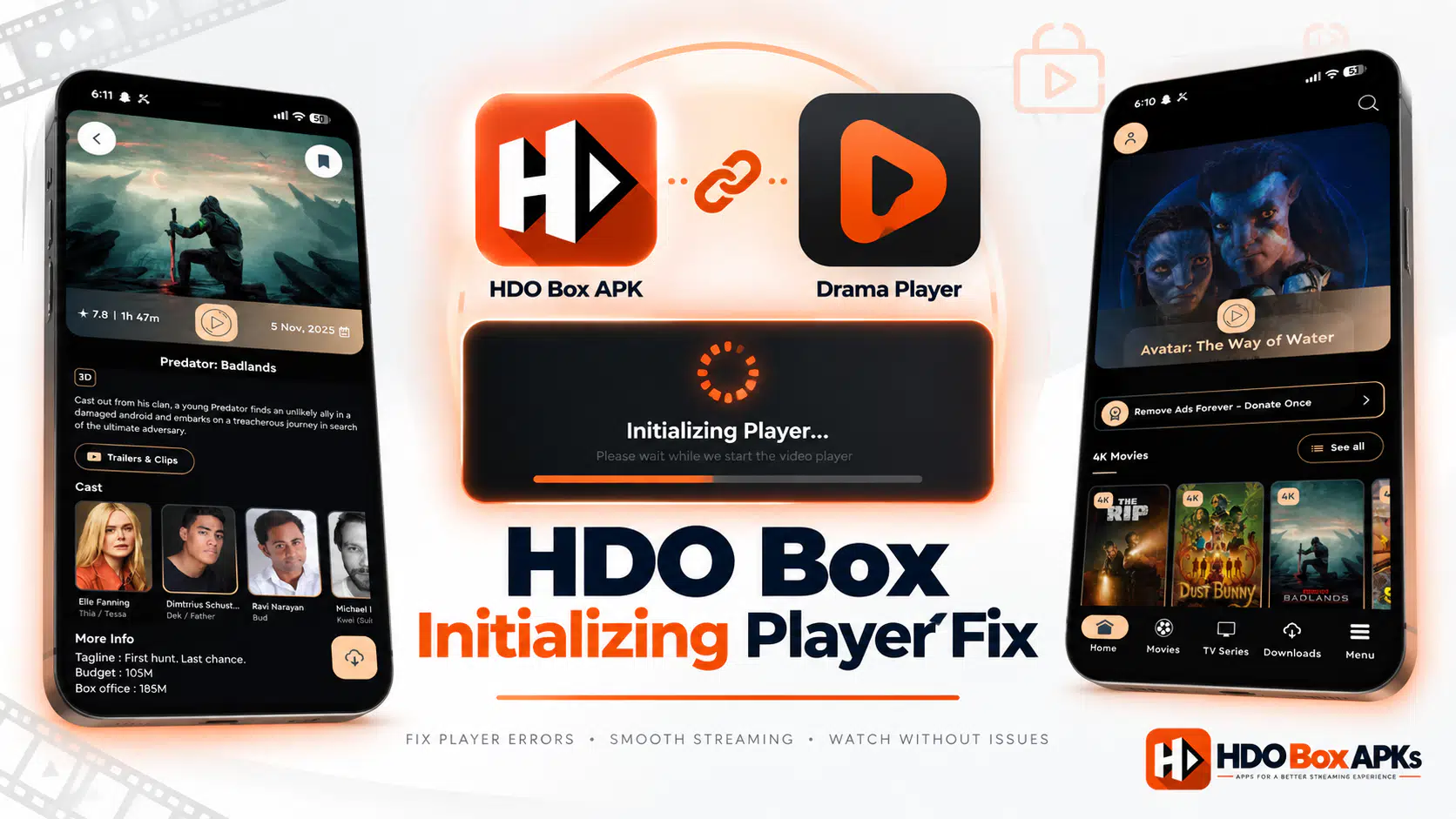
When you select a movie or television episode in HDO Box and the screen hangs indefinitely on "Initializing Player...", active video playback never begins. This frustrating loading freeze occurs when the host application cannot establish an automated software handoff with its external video rendering engine on your television or mobile device.
Resolving the hdo box initializing player problem android requires ensuring that required companion players are installed, processor architecture mismatches are corrected, and corrupted application cache files are cleared. This diagnostic guide provides verified, step-by-step methods to fix player initialization loops across Android TV, Google TV, Amazon Fire OS, and Android mobile platforms.
Why You Experience the HDO Box Initializing Player Problem on Android
Understanding why the hdo box initializing player problem android occurs helps you prevent recurring stream failures. Unlike standalone media players, HDO Box uses a modular, two-tier software architecture.
User Selects Title ──> HDO Box Resolves Stream ──> Android Intent Handoff ──> External Media Player ──> Playback Starts
                                                              │
                                                       [FAILURE POINT]
                                                Missing Player / ABI Mismatch
                                                              │
                                                Stuck on "Initializing Player"
The initialization freeze typically stems from five system-level events across your device operating system:
External Media Player Intent Handoff Failure: HDO Box operates primarily as a content aggregator and link scraper. Because the app does not contain a heavy built-in video decoder, it issues an automated command called an Android Intent to pass video streams to an external player like Drama Player.
When this secondary player is missing or corrupted, the app enters an unhandled waiting state that freezes on the initialization screen.
Operating System Package Visibility Restrictions: Modern operating systems (Android 11+, Google TV, and Fire OS) enforce strict package visibility policies. These security sandboxes prevent apps from querying other installed packages without explicit permissions.
If your operating system blocks HDO Box from detecting Drama Player, the handoff fails silently even if the companion player is installed on your storage.
CPU Architecture and Bitness Incompatibility: Modern phones and premium TV boxes run 64-bit systems (
arm64-v8a), while budget smart TVs and older streaming sticks use 32-bit systems (armeabi-v7a).Sideloading a 64-bit package onto a 32-bit OS allows the basic interface to load, but native decoding libraries crash during playback startup.
Content Delivery Network Socket Timeouts: Before handing media over to your player, HDO Box establishes a network handshake with the hosting server.
If the target CDN drops packets, experiences downtime, or blocks your IP, the app stalls while waiting for stream headers.
Corrupted System WebView and App Storage: HDO Box uses Android System WebView to process complex web scripts in the background.
Over time, accumulated cache files and invalid session tokens corrupt this engine, preventing the scraper from finalizing video streams.
Master Diagnostic Matrix: Symptoms and Direct Fixes
Use this quick diagnostic reference table to identify the root cause of your playback error:
| Error Symptom | Root Cause | Immediate Action |
|---|---|---|
| Stuck on "Initializing Player" indefinitely | Missing companion video rendering engine | Install Drama Player via Downloader code 730116 |
| "Install a new player" alert pop-up | Automated in-app download blocked by Fire OS | Sideload Drama Player manually before launching streams |
| Black screen immediately after initialization | Processor architecture mismatch (64-bit on 32-bit OS) | Reinstall using the Universal APK build |
| Loading spinner runs 30s then exits | Host server timeout or expired CDN token | Select a secondary stream link or lower resolution |
| Freeze occurs across all movie titles | Corrupted application cache or WebView data | Clear Cache and Data in system application settings |
Step-by-Step Methods to Fix HDO Box Initializing Player Problem on Android
Follow these practical diagnostic methods to eliminate the hdo box initializing player problem android on your streaming setup.
Method 1 (Primary Solution): Install and Pair the Required Companion Media Player
The primary cause of the initialization freeze is an uninstalled companion video player. On Amazon streaming devices, automated in-app installation prompts frequently fail because the operating system blocks background app installations.
Installing the companion engine manually eliminates the hdo box initializing player problem android immediately.
- Launch the Downloader application on your Firestick or Android TV.
- Select the URL input box on the home screen.
- Enter verified numeric shortcode 730116 into the text field and click Go.
- Allow the installation file to download, then select Install on the system prompt.
- Once setup finishes, click Done, then select Delete twice to remove temporary installer files and preserve local storage memory.
- Open HDO Box, select your desired movie, and start playback. The app will detect the player automatically.
If you also need to refresh the primary streaming application, input main Downloader code 6447263.
For a full directory of verified codes, consult our master HDO Box Downloader Code reference.
Method 2 (Architecture Check): Correct Processor Architecture and Bitness Incompatibilities
Installing an incompatible binary build on a 32-bit television device causes native decoding libraries to crash when playback initializes.
Review the hardware compatibility matrix below to deploy the correct package for your platform:
| Device Model | Base Operating System | Processor Bitness | Recommended Binary Build |
|---|---|---|---|
| Fire TV Stick Lite / Gen 3 | Fire OS 7 (Android 9) | 32-bit (armeabi-v7a) | Universal APK or 32-bit build |
| Fire TV Stick 4K (Gen 1 & 2) | Fire OS 6 / 7 | 32-bit (armeabi-v7a) | Universal APK or 32-bit build |
| Fire TV Stick 4K Max (Gen 2) | Fire OS 8 (Android 11) | 64-bit OS Kernel | Universal APK or arm64-v8a |
| Nvidia Shield TV Pro | Android TV 11 | 64-bit (arm64-v8a) | arm64-v8a or Universal APK |
| Chromecast with Google TV (4K) | Google TV OS (Android 12) | 32-bit OS Kernel | Universal APK or 32-bit build |
| Fire TV Stick Select (Vega OS) | Vega OS (Linux-based) | Non-Android Framework | Unsupported (No APKs) |
Amazon has introduced streaming devices running its proprietary Linux-based Vega OS. Because Vega OS does not utilize the Android runtime, it cannot execute Android APK files or Downloader redirects. Standard Fire TV Stick 4K, Max, and Cube models run Fire OS and remain fully compatible.
To deploy the Universal build, uninstall the existing application from your streaming device.
Next, open your web browser or Downloader tool and visit our HDO Box for Android TV setup guide to download the Universal APK package.
Complete the installation and open the app. The Universal package includes dual-architecture binaries that prevent the hdo box initializing player problem android across both 32-bit and 64-bit hardware.
Method 3 (System Storage): Clear System WebView Cache and Application Data
Accumulated cache files and stale connection tokens frequently stall video handshakes.
Clearing cached data resets the background parsing engine and resolves the hdo box initializing player problem android.
On Amazon Firestick and Fire TV:
- Navigate to Settings (gear icon) on your Fire TV top bar.
- Open Applications and select Manage Installed Applications.
- Locate and click HDO Box, then click Clear Cache and Clear Data.
- Return to the application list, select Drama Player, and click Clear Cache.
- Restart your streaming stick by holding down the Select and Play/Pause buttons on your remote control for five seconds.
On Android TV and Google TV Devices:
- Open the system Settings menu and select Apps.
- Click See all apps and select HDO Box.
- Choose Clear Cache, then select Clear Data.
- Verify that your device has at least 500 MB of available storage space for video stream buffering.
Method 4 (Network & Links): Switch Stream Servers and Configure Custom DNS
When a specific hosting server experiences traffic congestion or broken link indexes, HDO Box cannot establish a stable socket connection. The screen remains frozen on initialization because the remote server fails to return stream headers.
Press the Back button on your remote to exit the frozen initialization screen. Re-open the title details page and select a secondary server link (e.g. Server 2 or a 720p link). Lower bitrate streams require smaller initial buffers and initiate playback significantly faster on standard broadband connections.
If your Internet Service Provider uses DNS filtering to block media CDN endpoints, configure custom DNS resolvers in your Wi-Fi settings:
- DNS 1 (Primary):
1.1.1.1(Cloudflare) or8.8.8.8(Google DNS) - DNS 2 (Secondary):
1.0.0.1(Cloudflare) or8.8.4.4(Google DNS)
Using an encrypted virtual private network (VPN) also prevents local provider throttling and safeguards your connection data through verified sideloading workflows.
Enter this verified code in the Downloader app on Firestick & Android TV
Fire TV Remote Control Navigation for External Video Players
Because Drama Player functions as an independent media rendering window, standard hardware buttons on older Fire TV remotes do not always respond directly.
Use these directional pad (D-Pad) commands to navigate playback smoothly:
- Fast-Forward (Skip 10 Seconds): Press the Right directional ring button once. Tap repeatedly to jump through longer scenes.
- Rewind (Skip Backward 10 Seconds): Press the Left directional ring button to skip backward.
- Pause and Resume Video: Press the Down directional button to reveal the on-screen playback bar. Highlight the on-screen Pause icon, wait one second for the menu overlay to settle, and press the center Select button.
- Audio Track and Subtitle Selection: Press the Up directional button during active playback to access audio language and subtitle options.
- Exit Stream: Press the Back button once to terminate playback and return to the main catalog.
For detailed hardware configuration walkthroughs, read our comprehensive HDO Box for Firestick guide.
Master Downloader Shortcode Directory
Keep these verified Downloader shortcodes saved for fast application setup and maintenance across all your home entertainment devices:
| Application / Package | Numeric Downloader Code | Functional Role | Operational Status |
|---|---|---|---|
| HDO Box Official APK | 6447263 | Primary media aggregation interface | Verified Active |
| Drama Player (Required Engine) | 730116 | Mandatory video rendering engine | Verified Active |
| TROYPOINT Toolbox (Alt Store) | 250931 | Multi-app repository hub | Active Backup |
| HDO Box Direct Mirror | 863280 | Alternative APK download server | Active Mirror |
Enter this verified code in the Downloader app on Firestick & Android TV
Working Alternatives During Temporary Server Outages
If central server maintenance or backend scraping updates cause persistent streaming disruptions, you can deploy these reliable alternative applications while developers refresh host links:
- Stremio: A versatile media aggregator that utilizes official and community add-ons with integrated video decoders for torrent and Debrid streams.
- OnStream: A lightweight Android streaming application featuring an integrated playback engine that operates without secondary companion players.
- FilmPlus: A proven multi-source link scraper supporting Real-Debrid and external media decoders.
Review our complete guide to the best HDO Box alternatives for detailed feature comparisons.
If you experience other unexpected application errors, check our master HDO Box not working troubleshooting guide.
Frequently Asked Questions
Why does HDO Box freeze on initializing player after installing Drama Player?
What is the verified Downloader code for Drama Player?
Can I use VLC or MX Player instead of Drama Player?
Can HDO Box run on Amazon Fire TV devices with Vega OS?
Conclusion: Fixing the HDO Box Initializing Player Problem on Android
The hdo box initializing player problem android is caused by missing companion players, CPU architecture mismatches, or corrupted cache files. Installing Drama Player via code 730116, deploying the Universal APK build, and clearing application data eliminates loading freezes and restores smooth streaming. Keep your companion players updated to maintain reliable high-definition playback across all your entertainment devices.