

Changing the language on HDO Box covers three separate settings: the app interface text, the subtitle track playing alongside a video, and the spoken audio dub. How to change the language on HDO Box depends on which layer you want to adjust, because each one lives in a different part of the app. This guide walks you through all three methods step by step, plus fixes for the most common problems like settings not saving and subtitles going out of sync.
Quick Language Change Summary
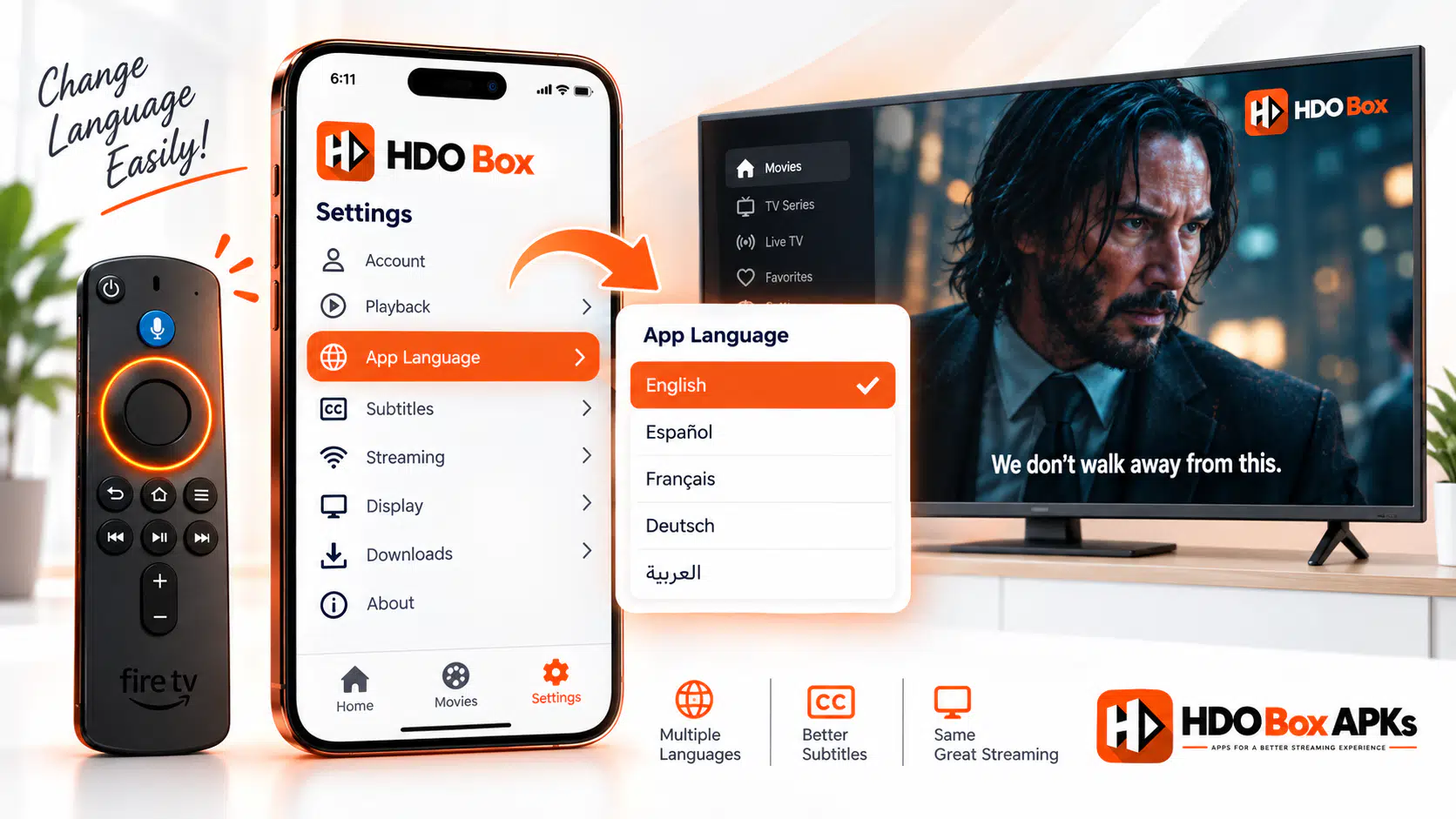
- App UI language: Settings > App Language > pick your locale. Takes effect instantly.
- Default subtitles: Settings > Subtitle Capabilities > toggle on > choose language.
- Subtitles during playback: tap the CC icon in the player overlay, pick a subtitle track.
- Audio dubs: tap the audio icon in MediaOn / Drama Player overlay. If only one track appears, switch to a different server on the title page.
How to Change the App Language on HDO Box
The app language controls all the menus, labels, and navigation text inside HDO Box. Changing it does not affect subtitles or audio tracks. Those are handled separately.
On Firestick or Android TV
- Open HDO Box and go to Settings. Move focus to the left-hand panel and select the Settings gear icon.
- Scroll down and tap App Language. Select it to open the language list.
- Choose your language. HDO Box supports English, Spanish, French, German, Arabic, and more. Tap your preferred language. The interface redraws immediately. No device reboot required.
On Android Phone or Tablet
On mobile, the Settings gear is in the lower-right corner of the main dashboard. Tap it, scroll to App Language, and select your locale.
Changing the app language does not translate movie titles, descriptions, or metadata from external servers. Only the HDO Box interface text changes.
How to Change Subtitles on HDO Box
Subtitles in HDO Box work at two levels: a global default in Settings, and a per-stream selection during playback.
Set a Default Subtitle Language
- Go to Settings > Subtitle Capabilities.
- Toggle default subtitles on.
- Choose Spanish, French, Arabic, or your preferred language.
Switch Subtitles During Playback
- Start playing a title.
- Press Select / OK on your remote or tap the screen.
- Tap the CC icon in the player overlay.
- Pick the language you want from the available tracks.
Fixing Subtitle Sync Problems
Subtitles appearing early or late means the subtitle file was matched to a different server's video cut. In the player overlay, switch the subtitle source number to match your active server (Server 3 video needs Subtitle Source 3).
How to Change Audio Language (Dubbed Tracks) on HDO Box
If the Stream Has Multiple Audio Tracks
- Start playback through Drama Player or MediaOn Player.
- Tap the audio track icon in the overlay.
- Select your preferred language.
If Only One Audio Track Is Available
Return to the movie or episode detail page, select a different server (Server A2, Server B, Server 3), and replay. Alternate servers often host regional dubs as separate files.
Using External Players
If routing through MX Player or VLC, use their native audio track menus instead.
HDO Box Language Settings: Quick Reference Table
| What You Want to Change | Where to Find It | Works Without Player? | Main Limitation |
|---|---|---|---|
| App menus & text | Settings > App Language | Yes | Doesn't change media metadata |
| Default subtitle language | Settings > Subtitle Capabilities | Partial | Fails if server has no matching subtitle |
| In-playback subtitle track | Player overlay > CC icon | No | Sync issues if subtitle index mismatches server |
| Audio dub (spoken language) | Player overlay > Audio icon | No | Only works if stream has multi-audio tracks |
| Server-level dubbed version | Movie detail > Server list | Yes | Manual server trial required |
Common Language Problems and Fixes
| Problem | Fix |
|---|---|
| Language resets after closing app | Force stop app, clear cache, reapply language, exit via back key |
| No subtitle option appears | Switch server on movie detail page or enable default subtitles in Settings |
| Subtitles out of sync | Match subtitle source number to active server number |
| Only one audio language available | Try alternate servers on the title page |
| Casting reverts to wrong language | End cast, update phone OS language, re-cast |
| Subtitle menu greyed out | Install correct CPU build of Drama Player (arm64-v8a for modern devices) |
Language Settings by Device
| Device | Settings Icon Location | Navigation Method |
|---|---|---|
| Amazon Firestick | Left sidebar panel | D-pad left to reveal sidebar |
| Android TV / Google TV | Left sidebar panel | D-pad left to reveal sidebar |
| Android Phone / Tablet | Lower-right corner | Tap the gear icon |
| PC (BlueStacks) | Lower-right corner (emulated) | Click the gear icon |
Frequently Asked Questions
How do I change the language on HDO Box?
Why is HDO Box not saving my language setting?
Can I get Spanish (or another language) subtitles on HDO Box?
How do I switch to a dubbed audio track?
Why are subtitles out of sync?
Changing Language on HDO Box: Summary
Changing the language on HDO Box is straightforward once you know which setting controls which layer. App Language changes the interface. Subtitle Capabilities sets your default captions. The player overlay handles in-playback subtitle and audio selection. If a setting won't save, a quick cache clear almost always fixes it.
For a working player to access subtitles and audio tracks, make sure you have Drama Player or MediaOn Player installed and correctly set up.